
Getting started with ECU Workbench
Set up the desktop application and make your first connection to a supported ECU.
Screenshots show the real desktop interface with demonstration data. Adapter names and vehicle details will differ on your system. This guide ends at connection.
1. Download and open
Choose a download for your operating system and processor. Use stable unless you specifically need a development build.
- Windows: download and launch the ECU Workbench executable.
- macOS: choose Apple Silicon or Intel as appropriate, open the DMG, and follow its installation instructions. A universal DMG supports both processor types.
This walkthrough uses the desktop layout. Android downloads are listed on the product page; Android permissions and setup are outside this guide.
Expected result: the application opens to sign-in, or restores your existing session.
2. Sign in with your account
Use your MCU Innovations account. Complete any verification requested by your account. Existing ECU Workbench licenses remain available with the same account.
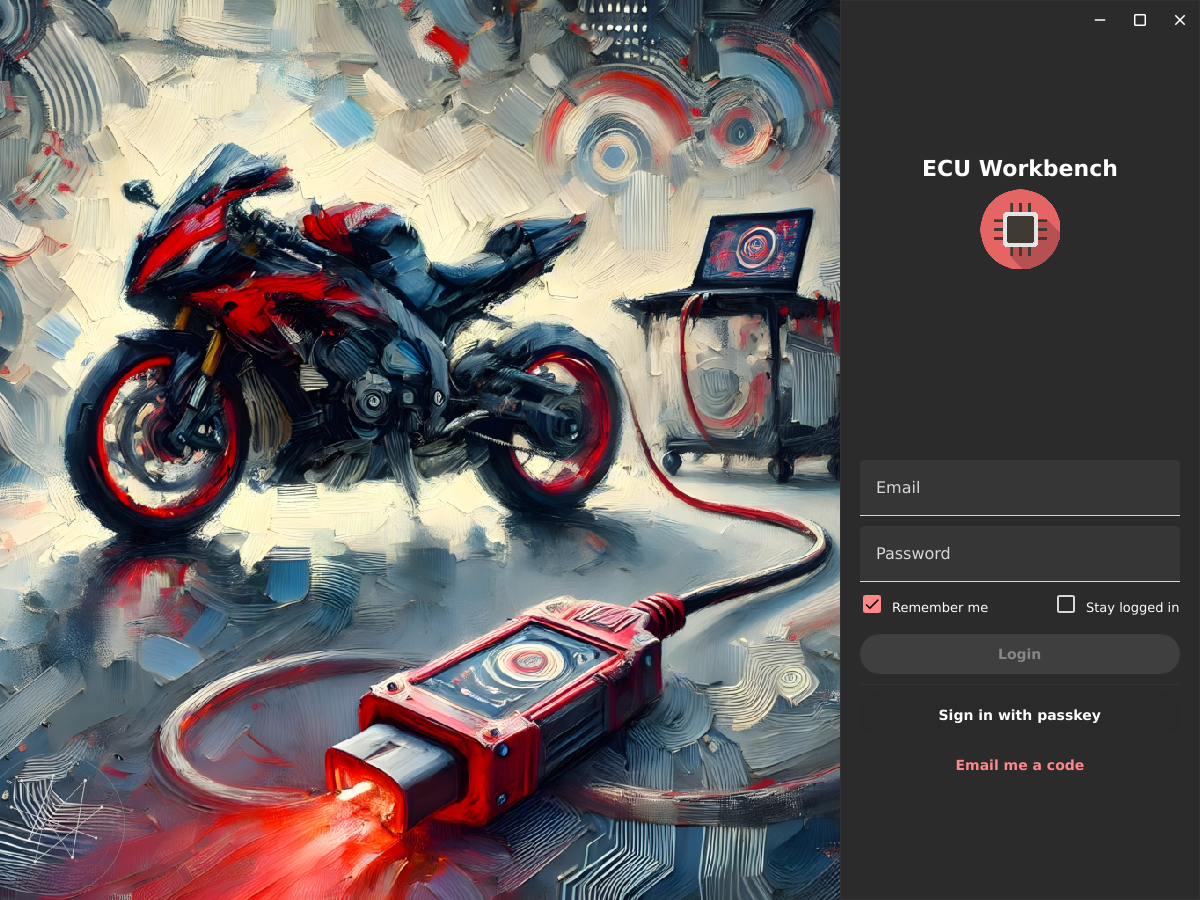
Expected result: the main application appears. If sign-in fails, check your connection and account details, or contact support.
3. Choose your communication adapter
Connect an adapter supported by your ECU and install its platform driver if required. Open Vehicle, select the + connection-actions button at the bottom right, then New connection. Choose the Communication adapter.
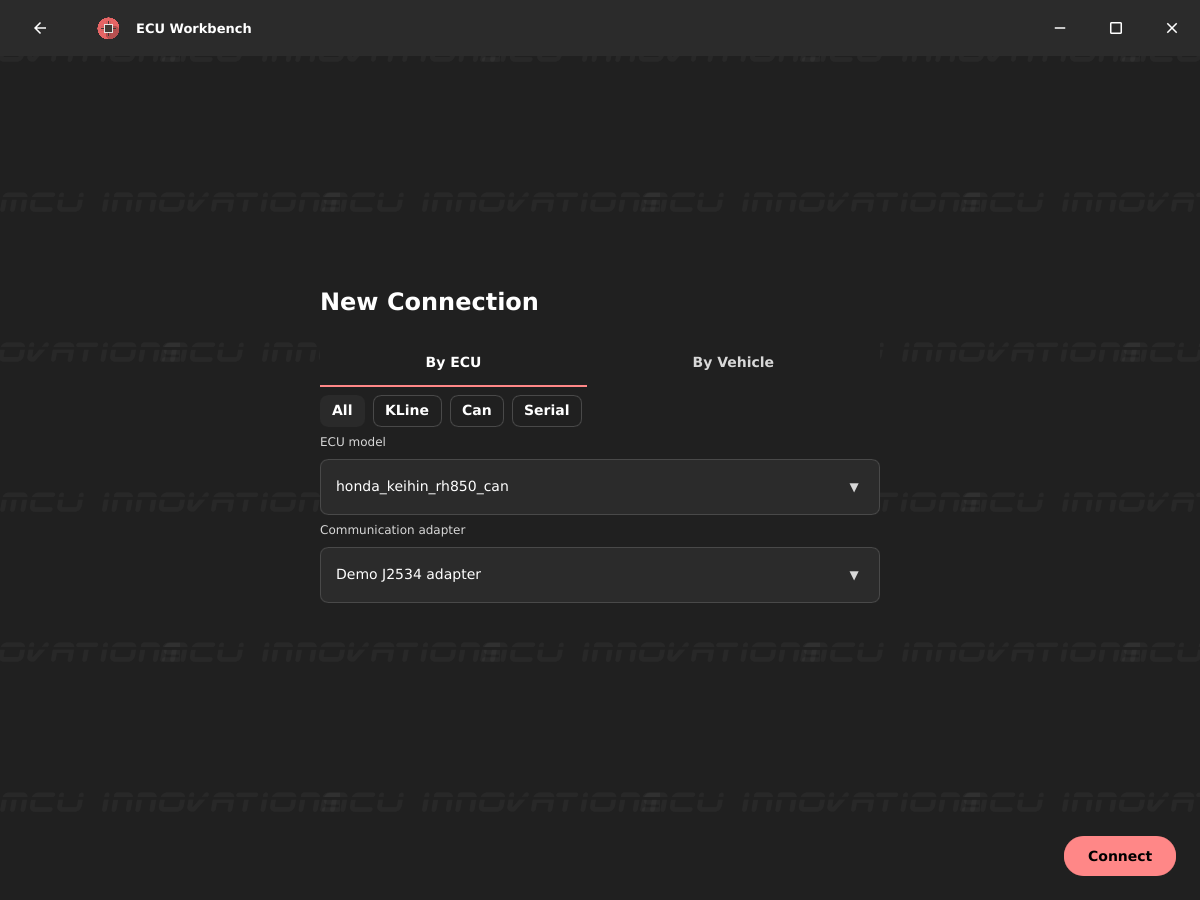
Expected result: your adapter is selected. If it is missing, check its connection and driver, then reopen the connection form. Use an adapter that supports the selected ECU's bus.
4. Choose your vehicle or ECU
In New Connection, choose By Vehicle and select Make, Model, and Year / variant. Alternatively, use By ECU when you know the correct ECU model.
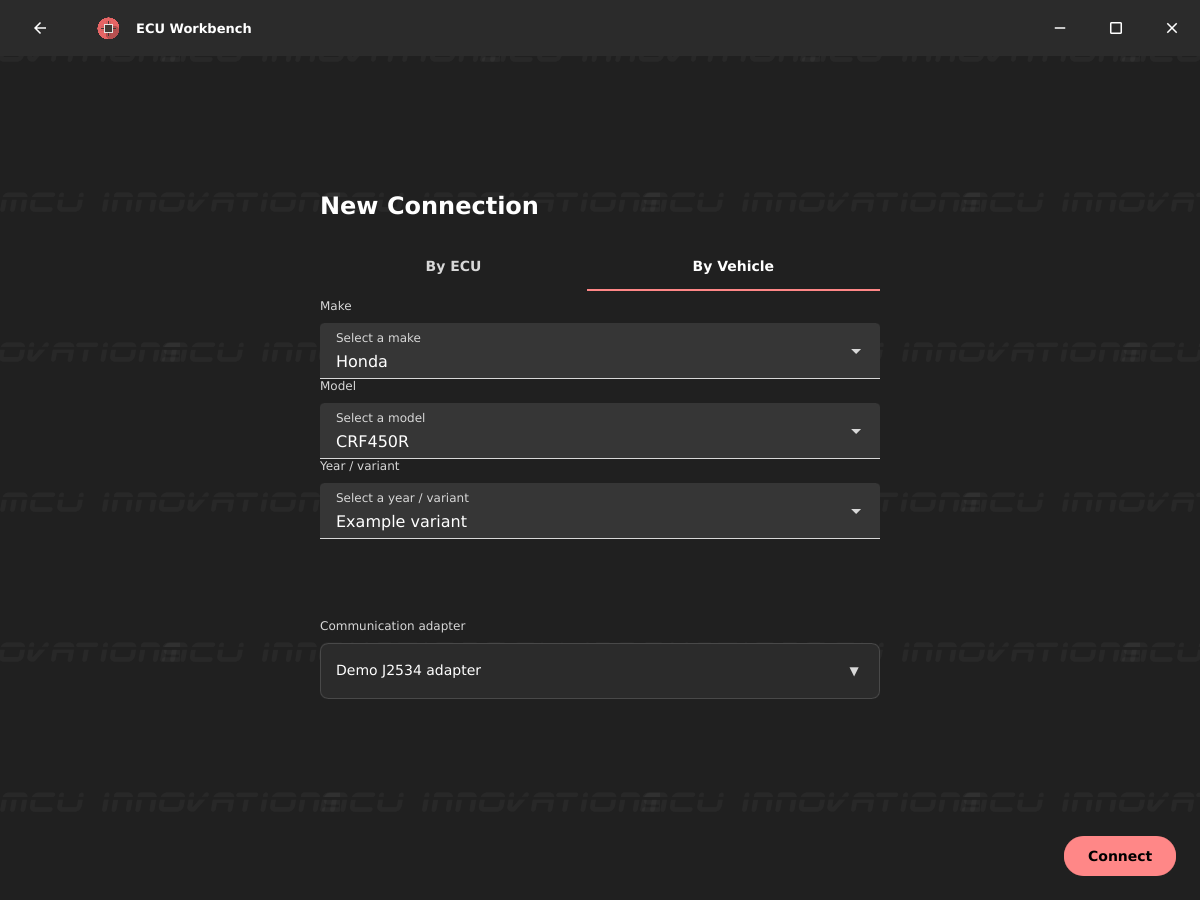
Expected result: the vehicle and adapter are selected and Connect is available. If your vehicle is absent, check supported vehicles and license packages.
5. Connect and confirm
Follow the connection and power instructions for your selected ECU and wiring. Select Connect and follow any prompts shown by the application.
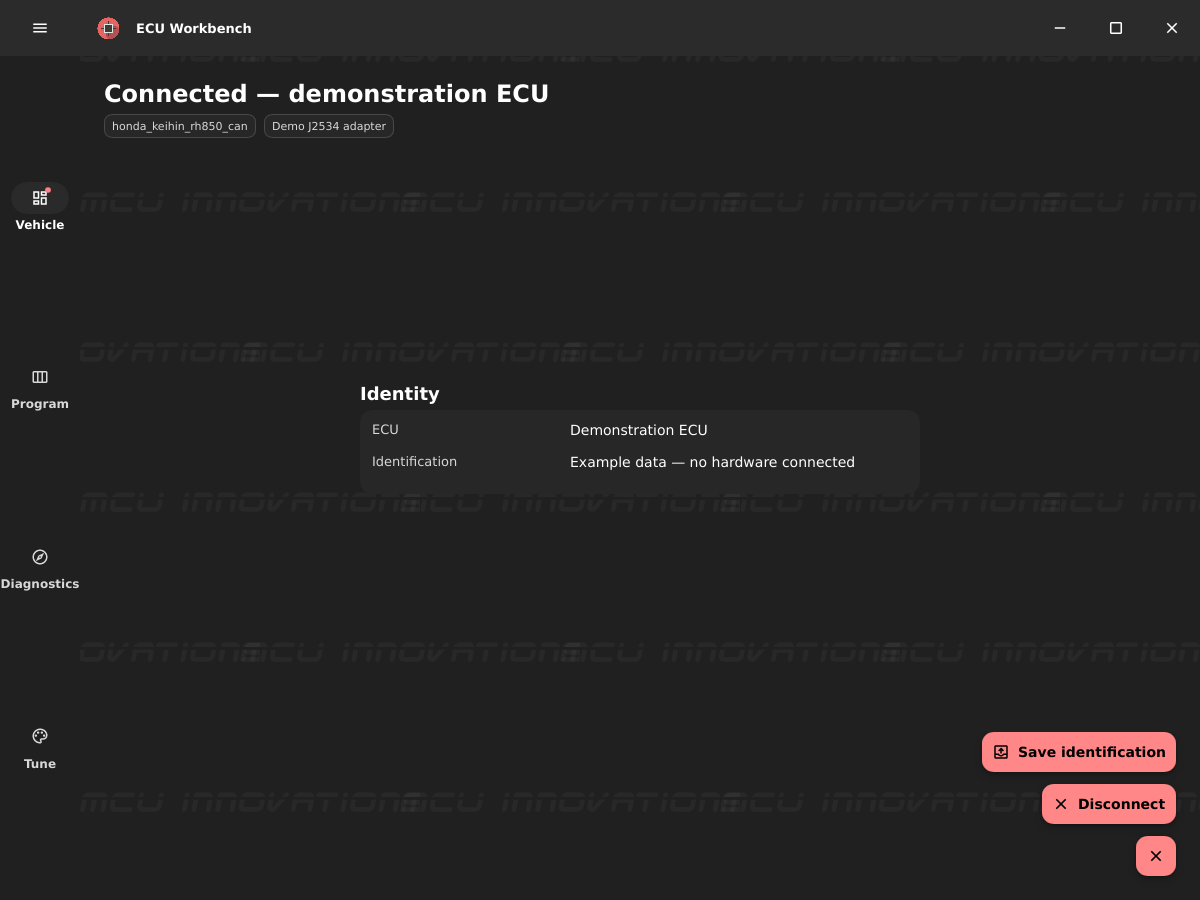
Expected result: the Vehicle screen shows a connection and identification details where supported. If connection fails, check the selected ECU, adapter, wiring, power, and license, then use the displayed error when contacting support.
You have completed basic setup. Open the connection-actions button at the bottom right and select Disconnect when finished with the session.