
OPTA J2534 Driver (Tactrix Openport 2.0)
Download and install the latest OPTA J2534 04.04 Tactrix driver package for Windows.
Install Steps
- Download the MSI package using the button above.
- Disconnect your Tactrix Openport 2.0 from USB before install.
- Run the MSI installer.
- Follow the installer prompts and complete installation.
- Reconnect the Tactrix Openport 2.0 after install finishes.
Visual Install Walkthrough
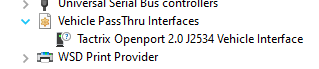
1) Before install: official driver view
Device Manager typically shows the interface as Tactrix Openport 2.0 J2534 Vehicle Interface before switching to the OPTA WinUSB driver.
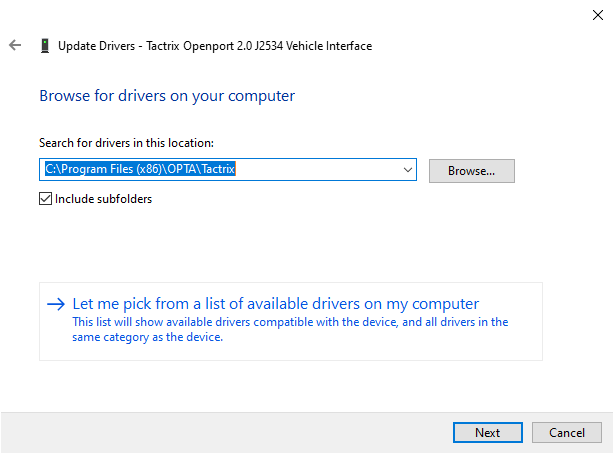
2) Update driver and browse to installed INF path
In Update Drivers, browse to C:\Program Files (x86)\OPTA\Tactrix and keep Include subfolders enabled.
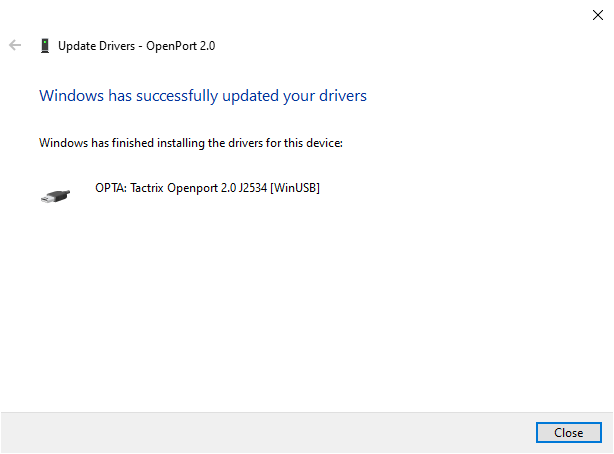
3) Confirm successful install
Windows should confirm installation of OPTA: Tactrix Openport 2.0 J2534 [WinUSB].
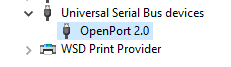
4) After install: Device Manager with OPTA driver
The device should appear under Universal Serial Bus controllers as Tactrix Openport 2.0 J2534 Vehicle Interface.
Verify Installation
- Open Device Manager and confirm the interface appears without warnings.
- Launch your J2534-compatible app and select the 'OPTA: Tactrix Openport 2.0' driver.
- Run a connection test to confirm communication with the vehicle ECU.